The Complete Technical SEO Checklist for Next.js Developers (2026 Guide)
You can write the best blog post in your niche, ship a beautifully designed landing page, and still get zero organic traffic — because Google never properly crawled it, never understood what it was, or ranked a slower competitor above it instead. That's the frustrating part of SEO nobody warns you about: content quality is only half the battle. The other half is technical SEO — the plumbing that decides whether search engines can find, understand, and trust your pages in the first place.
The good news is that technical SEO isn't a mystery box. It's a checklist. Once you know what to check, most of it takes an afternoon to fix in a Next.js app — no marketing degree required.
By the end of this guide, you'll have a complete, practical checklist covering crawlability, metadata, structured data, Core Web Vitals, and content quality — with real Next.js 16 App Router code for each item.
Why Technical SEO Is Different From "Writing Good Content"
Content SEO is about what you say. Technical SEO is about whether search engines can even reach what you said. A page can have perfect content and still fail because:
- It's blocked in
robots.txtby accident - It has no canonical URL, so Google indexes three duplicate versions of it
- It loads so slowly that Google deprioritizes it in rankings
- It has no structured data, so it never qualifies for rich results
None of these are content problems — they're implementation problems. And implementation problems are exactly what a developer is best positioned to fix.
Why Technical SEO Matters for AI Search Too
In 2026, "search" doesn't just mean the Google results page anymore. Tools like ChatGPT, Gemini, Claude, and Perplexity all crawl and cite web pages when answering questions — and the exact same fundamentals that help Google rank you are what let these AI systems find, parse, and trust your content in the first place.
- Structured data gives AI systems an unambiguous, machine-readable summary of what a page is — an article, a product, a FAQ — instead of forcing them to guess from raw HTML.
- Semantic HTML (real
<h1>–<h3>headings,<article>,<nav>, proper list elements instead of div soup) makes it far easier for any crawler, AI or otherwise, to understand a page's structure and pull an accurate answer out of it. - Crawlable pages — no accidental
noindex, no content trapped behind client-side-only rendering with nothing in the initial HTML — matter just as much to an AI crawler as to Googlebot. If a bot can't fetch it, it can't cite it.
The practical takeaway: none of this requires a separate "AI SEO" strategy. Everything in this checklist already does double duty — it's the same groundwork that gets a page indexed by Google, ranked well, and eligible to be cited by an AI assistant.
1. Crawlability & Indexing
Before Google can rank your page, it has to find it and be allowed to index it. This is the foundation — get it wrong and nothing else on this list matters.
Add a robots.txt
robots.txt tells search engine crawlers which parts of your site they're allowed to visit. In Next.js, you don't write raw text — you export a config from a special file.
// app/robots.ts
import { MetadataRoute } from "next";

export default function robots(): MetadataRoute.Robots {
  return {
    rules: {
      userAgent: "*",
      allow: "/",
      disallow: ["/admin", "/api"], // block anything that shouldn't be crawled
    },
    sitemap: "https://yourdomain.com/sitemap.xml",
  };
}
What's happening here: Next.js automatically generates a working /robots.txt route from this file. allow: "/" lets crawlers visit everything by default, while disallow blocks specific paths like admin dashboards or internal API routes that have no business being indexed.
⚠️ Common Mistake: Accidentally leaving
disallow: "/"in arobots.txtafter moving from staging to production. This single line blocks your entire site from every search engine — always double-check this file right after deploying.
Add a sitemap.xml
A sitemap is a map of every URL on your site that you want indexed. It doesn't force Google to index anything, but it makes discovery much faster — especially for new pages that have no other links pointing to them yet.
// app/sitemap.ts
import { MetadataRoute } from "next";
import { getAllPosts } from "@/lib/posts";

export default function sitemap(): MetadataRoute.Sitemap {
  const baseUrl = "https://yourdomain.com";

  const posts = getAllPosts().map((post) => ({
    url: `${baseUrl}/blog/${post.slug}`,
    lastModified: new Date(post.updatedAt || post.publishedAt),
    changeFrequency: "weekly" as const,
    priority: 0.8,
  }));

  const staticRoutes = ["", "/about", "/blog", "/contact"].map((route) => ({
    url: `${baseUrl}${route}`,
    lastModified: new Date(),
    changeFrequency: "monthly" as const,
    priority: route === "" ? 1 : 0.6,
  }));

  return [...staticRoutes, ...posts];
}
What's happening here: this generates every blog post URL dynamically from your data source, plus a handful of static pages, and outputs them at /sitemap.xml automatically. lastModified helps Google know when to re-crawl a page; priority is a soft hint about relative importance, not a guarantee.
💡 Tip: Submit your sitemap URL directly inside Google Search Console → Sitemaps after deploying. It won't guarantee faster indexing, but it removes any ambiguity about where your sitemap lives.
Check Your Robots Meta Tag
Even if robots.txt allows crawling, an individual page can still say "don't index me" via a meta tag. This matters most for things like thank-you pages, internal search results, or draft content.
// app/some-page/page.tsx
import type { Metadata } from "next";

export const metadata: Metadata = {
  robots: {
    index: false, // don't show this page in search results
    follow: true, // but still crawl the links on it
  },
};
⚠️ Common Mistake: Setting
index: falseon your root layout "just to be safe" during development, then forgetting to remove it before launch. This is one of the most common reasons a brand-new site gets zero organic traffic — always verify your homepage's robots meta in production.
Verify With Google Search Console
Search Console is free and non-negotiable. It tells you, directly from Google, which pages are indexed, which are excluded (and why), and whether your sitemap was actually read. Set it up early — indexing issues are invisible until you check.
The single most-used feature here is the URL Inspection Tool. Paste any URL from your site into it and Google tells you exactly whether that page is indexed, when it was last crawled, and — if it's not indexed — why not. After a major change to a page (new metadata, fixed structured data, a rewritten intro), use it to request reindexing instead of waiting for Google to notice on its own.
💡 Tip: URL Inspection is also the fastest way to debug "why isn't my new blog post showing up in search" — it'll tell you plainly if it's still queued, blocked, or already indexed but just not ranking yet (which is a different problem).
Don't Forget Bing Webmaster Tools
Google isn't the only search engine worth indexing on. Bing powers Bing search itself, plus Yahoo, DuckDuckGo (partially), and is the underlying index behind Microsoft Copilot's web results — meaningful traffic that's easy to pick up for almost no extra work.
- Sign up at Bing Webmaster Tools and verify your site
- Submit the exact same
sitemap.xmlyou already built for Google — no separate file needed - Bing also offers a URL Inspection-style tool and a URL Submission option for faster indexing of new pages
💡 Tip: Bing Webmaster Tools lets you import your verified site directly from Google Search Console in a couple of clicks, which skips most of the manual verification steps entirely.
2. Metadata: Titles, Descriptions & Canonical URLs
Metadata doesn't change how your page looks — it changes how search engines describe and rank it, and how it appears when shared.
Related: How to Add Metadata in Next.js 16 (2026 Beginner's Guide) covers the full Metadata API in more depth if you want a deeper dive after this section.
Set a Title Template Once, Not on Every Page
// app/layout.tsx
import type { Metadata } from "next";

export const metadata: Metadata = {
  metadataBase: new URL("https://yourdomain.com"),
  title: {
    default: "YourSite — Tagline Here",
    template: "%s | YourSite",
  },
  description: "A clear, honest description of what your site does.",
};
What's happening here: metadataBase resolves every relative URL elsewhere in your metadata (like Open Graph images) into an absolute URL automatically. title.template means any page that sets title: "My Post" automatically renders as "My Post | YourSite" — you never repeat the suffix manually.
⚠️ Common Mistake: Manually typing
"My Post | YourSite"as the title on individual pages while also having atemplateset in the root layout. This doubles the suffix into something like"My Post | YourSite | YourSite". Let the template do the work — pages should only set the unique part.
Write Unique Titles and Descriptions Per Page
// app/blog/[slug]/page.tsx
export async function generateMetadata({ params }: Props): Promise<Metadata> {
  const { slug } = await params;
  const post = getPostBySlug(slug);

  return {
    title: post.title,
    description: post.description,
    alternates: {
      canonical: `https://yourdomain.com/blog/${post.slug}`,
    },
  };
}
Length guidelines to actually stick to:
- Title: ~50–60 characters (roughly 580px) before Google truncates it
- Description: ~150–160 characters — treat it as ad copy for your own page, not a summary
Canonical URLs
A canonical tag tells Google "this is the one true version of this page" when the same content is reachable through multiple URLs — with or without a trailing slash, with query params, or duplicated across categories.
export const metadata: Metadata = {
  alternates: {
    canonical: "https://yourdomain.com/blog/my-post",
  },
};
💡 Tip: Next.js already infers a canonical URL from your route and
metadataBasein most cases. Set this explicitly only when you have genuine duplicate content — like a product reachable at two different category paths.
3. Structured Data (JSON-LD)
Structured data doesn't change what a page looks like to a human — it tells search engines and AI assistants explicitly what kind of content a page is: an article, a product, an FAQ, a business. This is what unlocks rich results like star ratings, breadcrumbs, and FAQ dropdowns directly in search listings.
// app/blog/[slug]/page.tsx
import Script from "next/script";

<Script
  id="blog-post-jsonld"
  type="application/ld+json"
  dangerouslySetInnerHTML={{
    __html: JSON.stringify({
      "@context": "https://schema.org",
      "@type": "BlogPosting",
      headline: post.title,
      description: post.description,
      datePublished: post.publishedAt,
      dateModified: post.updatedAt || post.publishedAt,
      author: { "@type": "Person", name: "Your Name" },
      publisher: {
        "@type": "Organization",
        name: "YourSite",
        url: "https://yourdomain.com",
      },
    }),
  }}
/>
What's happening here: this injects a <script type="application/ld+json"> block with zero visible UI impact. Google's crawler parses it separately from your rendered content to understand the page's structure.
⚠️ Common Mistake: Assuming valid JSON-LD automatically means eligible for rich results. Google layers its own required-field requirements on top of the schema.org spec — an
Articlemissing anauthor, for instance, is valid JSON-LD that Google will still ignore for rich-result purposes. Always test with Google's Rich Results Test before assuming it's working.
Common types worth adding depending on your page:
| Page type | Schema type |
|---|---|
| Blog post | Article / BlogPosting |
| FAQ section | FAQPage |
| Product page | Product |
| Local business | LocalBusiness |
| Software/SaaS tool | SoftwareApplication |
| Nav trail | BreadcrumbList |
💡 Save time: use the JSON-LD Generator to generate any of these schema types with a live eligibility checklist scored against Google's actual Rich Results requirements, instead of hand-writing and second-guessing the JSON.
4. Open Graph & Twitter Cards
This is technically a "social sharing" feature, but it directly affects click-through rate from search and social — and CTR is a real ranking signal.
export const metadata: Metadata = {
  openGraph: {
    title: post.title,
    description: post.description,
    url: `https://yourdomain.com/blog/${post.slug}`,
    siteName: "YourSite",
    type: "article",
    images: [{ url: "/og-image.png", width: 1200, height: 630 }],
  },
  twitter: {
    card: "summary_large_image",
    title: post.title,
    description: post.description,
  },
};
💡 Tip: 1200×630px is the sweet spot for Open Graph images — smaller images get stretched and look blurry on most platforms. Reuse the same image for both
openGraphand
Not sure how Open Graph and Twitter Cards actually differ, or whether you need both? Open Graph vs Twitter Cards: What's the Difference? breaks down the exact syntax differences and when each one is read. And if you'd rather generate all of this instead of hand-writing it, the Meta Tag Generator outputs SEO tags, Open Graph, Twitter Cards, and JSON-LD from one set of inputs.
5. Core Web Vitals & Performance
Google explicitly uses Core Web Vitals as a ranking signal. These aren't vague "make it fast" advice — they're three specific, measurable metrics.
| Metric | What it measures | Good threshold |
|---|---|---|
| LCP (Largest Contentful Paint) | How fast the main content loads | Under 2.5s |
| INP (Interaction to Next Paint) | How responsive the page feels to input | Under 200ms |
| CLS (Cumulative Layout Shift) | How much the layout jumps around while loading | Under 0.1 |
The Next.js-Specific Fixes That Matter Most
// Always use next/image instead of <img>
import Image from "next/image";

<Image
  src="/hero.jpg"
  alt="Descriptive alt text" // required — also helps SEO and accessibility
  width={1200}
  height={630}
  priority // only for above-the-fold images
/>
Why this matters: next/image automatically serves resized, modern-format (WebP/AVIF) images and reserves layout space before the image loads — directly improving both LCP and CLS. priority should only go on the one or two images visible without scrolling; overusing it defeats lazy loading for everything else.
// Load fonts through next/font to avoid layout shift
import { Inter } from "next/font/google";

const inter = Inter({ subsets: ["latin"], display: "swap" });
Why this matters: next/font self-hosts Google Fonts at build time, eliminating the render-blocking network request to Google's font CDN and preventing the "flash of invisible/unstyled text" that causes layout shift.
⚠️ Common Mistake: Reserving no space for ads, embeds, or dynamically loaded content. Every element that pops in after initial render without a reserved size pushes content around — that's exactly what CLS measures.
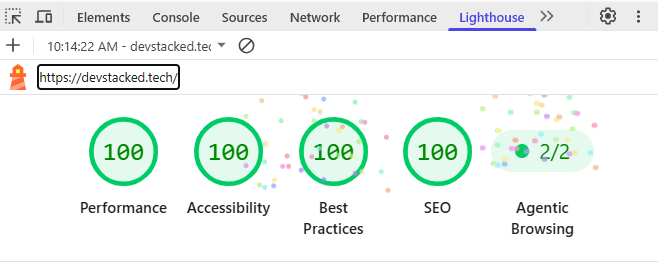
Run Lighthouse (built into Chrome DevTools) for quick local lab data, but don't stop there — Google PageSpeed Insights runs the same Lighthouse audit and layers in real-user field data (from the Chrome User Experience Report) when enough traffic exists for your URL. That field data is what actually matters, since lab data and field data can disagree, and Google ranks based on the field data your real visitors generate — not your local Lighthouse score. Cross-check both there and in Search Console's Core Web Vitals report.
6. Mobile-Friendliness
Google indexes the mobile version of your site first (mobile-first indexing), not desktop. If your mobile layout is broken, that's the version Google evaluates for ranking — even for desktop searches.
Quick checklist:
- Responsive layout at all breakpoints (test with Tailwind's
sm:/md:/lg:prefixes actually rendering correctly) - Tap targets at least 44×44px
- No horizontal scrolling
- Text readable without zooming (16px minimum for body text)
💡 Tip: Test with Chrome DevTools' device toolbar set to an actual mid-range device profile, not just "responsive" mode dragged to a guess-width.
7. URL Structure & Internal Linking
Keep URLs Short, Readable, and Keyword-Relevant
Good:  /blog/nextjs-metadata-guide
Bad:   /blog/post?id=48291&ref=xyz
Next.js's file-based routing makes this almost automatic — just name your route folders and slugs sensibly.
Link Between Related Pages Deliberately
Internal links help Google understand which pages are related and pass authority between them. They also keep users (and crawlers) moving deeper into your site instead of bouncing after one page.
<p>
  Once auth is set up, check out our{" "}
  <Link href="/blog/stripe-checkout-guide">Stripe Checkout guide</Link> to
  add billing next.
</p>
⚠️ Common Mistake: Building tool pages or landing pages with almost no surrounding prose or internal links. Thin, isolated pages are exactly what tools like Google AdSense and Search Console's coverage report flag as low-value content — a page with substantial explanatory text and links to related pages reads as more legitimate to both crawlers and ad review systems.
8. HTTPS & Basic Security
This one's usually already handled if you're on Vercel, Netlify, or similar — but confirm it:
- Every page loads over
https://, with no mixed-content warnings (images/scripts loaded over plainhttp://) wwwvs non-wwwredirects to one canonical version, not both serving live content- No broken SSL certificate warnings
HTTPS has been a confirmed Google ranking signal since 2014 — it's small, but it's free, so there's no reason to skip it.
9. Content Quality & Thin Content
Technical SEO gets your page crawled and indexed. It does not make a page worth ranking if there's nothing substantial on it. This matters especially for:
- Tool pages (calculators, generators) — pair the actual tool with real explanatory prose about what it does and why it matters, not just a bare form
- Category/index pages — a list of links with zero context reads as thin to both search engines and human reviewers
- Duplicate boilerplate — if ten pages share 90% identical copy with one variable swapped, consolidate or genuinely differentiate them
💡 Tip: A useful gut check: if you deleted the interactive/dynamic part of a page, would there still be a paragraph or two of genuinely useful content left? If not, that page is a thin-content risk.
The Full Checklist at a Glance
-
robots.txtexists and isn't accidentally blocking the whole site -
sitemap.xmlexists and is submitted in Search Console - No unintended
noindexon pages that should rank - Site verified and sitemap submitted in Bing Webmaster Tools too
- Every page has a unique title (50–60 chars) and description (150–160 chars)
- Canonical URLs set where duplicate content is possible
- JSON-LD structured data added for articles, FAQs, products, or business info
- Open Graph + Twitter Card tags on every shareable page
- Images use
next/imagewith descriptivealttext - Fonts loaded through
next/font - Core Web Vitals checked in Search Console (not just Lighthouse locally)
- Mobile layout tested on a real device profile
- URLs are short, readable, and keyword-relevant
- Related pages link to each other with real anchor context
- Site is fully on HTTPS with no mixed content
- No thin, boilerplate-only, or near-duplicate pages
Frequently Asked Questions
How long does it take for technical SEO changes to affect rankings?
Indexing changes (like fixing robots.txt) can show up in days. Ranking changes from Core Web Vitals or content improvements typically take weeks, since Google needs to re-crawl and re-evaluate the page relative to competitors.
Do I need a sitemap if my site is small?
Technically no — Google can discover a handful of linked pages without one. But it costs almost nothing to add and removes any doubt about discovery, so there's no real reason to skip it even on small sites.
Is Core Web Vitals a huge ranking factor?
It's one signal among many, and generally a tiebreaker rather than a dominant factor — strong content with mediocre performance usually still outranks weak content with perfect performance. That said, "mediocre" has a floor; genuinely poor Core Web Vitals can hold a page back.
Can I check all of this without Google Search Console?
Not fully. Lighthouse and third-party tools give you lab data, but Search Console gives you real user field data and actual indexing status — which is what Google uses for ranking decisions. It's free and essential, not optional.
Does technical SEO matter if I'm not writing much content yet?
Yes — technical SEO is largely a one-time setup cost (metadata patterns, sitemap, structured data templates) that pays off on every future page automatically. It's far easier to build it into your app's foundation now than to retrofit dozens of pages later.
Wrapping Up
Technical SEO isn't a mysterious marketing skill — it's a checklist of implementation details that a developer is uniquely positioned to get right: correct metadata exports, a real sitemap, valid structured data, and a page that actually loads fast. Get the foundation right once in your layout.tsx, sitemap, and robots files, and every page you ship afterward inherits it for free.
From here, a natural next step is auditing your existing pages against the checklist above one by one, starting with your highest-traffic pages first — small technical fixes there tend to move the needle fastest.
Continue Learning
- Image Optimization in Next.js 16: The Complete Beginner's Guide
- Google Tag Manager & GA4 Setup for Next.js 16
- Google Search Console Setup for Next.js (Beginner's Guide)
- llms.txt Explained: Should Your Next.js Site Have One in 2026?
Useful Resources

 Reddit
 WhatsApp
More in SEO
View AllNext.js Adoption Benchmark 2026: The Data
An original 2026 Next.js adoption benchmark built from public npm, GitHub, and developer survey data — covering downloads, App Router use, and sentiment.
llms.txt Explained: What It Is, Who Uses It, and How to Add It to Next.js
llms.txt explained for Next.js developers — what it actually is, who really reads it, and a copy-paste guide to adding one to your App Router site in 2026.
Google Tag Manager & GA4 Setup for Next.js 16 (2026 Guide)
Learn how to set up Google Tag Manager and GA4 in Next.js 16 App Router — GTM container, GA4 property, custom events, and Consent Mode, step by step.
Google Search Console Setup for Next.js (2026 Beginner's Guide)
Learn how to set up Google Search Console for a Next.js 16 App Router site — verification, sitemap.ts, robots.ts, and indexing best practices.